Validating User Input
Vaadin helps you validate user input based on the back-end Java data model. It reads the Bean Validation (JSR-380) annotations on your Java data types and applies these constraints to the user input. Validation is enabled by default in all forms created with the Vaadin Binder API.
When creating forms in TypeScript, with Lit and the Binder API, you automatically get all data model constraints applied to your form fields.
The Binder API validates most standard constraints, such as @Max, @Size, @Pattern, @Email on the client side, without a network round trip delay (see the full list in the Built-in Client-Side Validators section below).
When you eventually submit data to server-side endpoints, Vaadin validates all constraints on the server as well, and the Binder API updates the form to show server-side validation errors (if any).
This chapter describes input validation for forms created with TypeScript and Lit (the @vaadin/form module).
For details on input validation for forms created in Java see the Validating and Converting User Input chapter.
Specifying Constraints
Constraints are specified as a part of the data model, in the Java code. You can use any of the built-in constraints, as well as your own.
import javax.validation.constraints.Email;
import javax.validation.constraints.NotBlank;

public class Employee {
    @NotBlank
    private String username;

    private String title;

    @Email(message = "Please enter a valid e-mail address")
    private String email;

    // + other fields, constructors, setters and getters
}
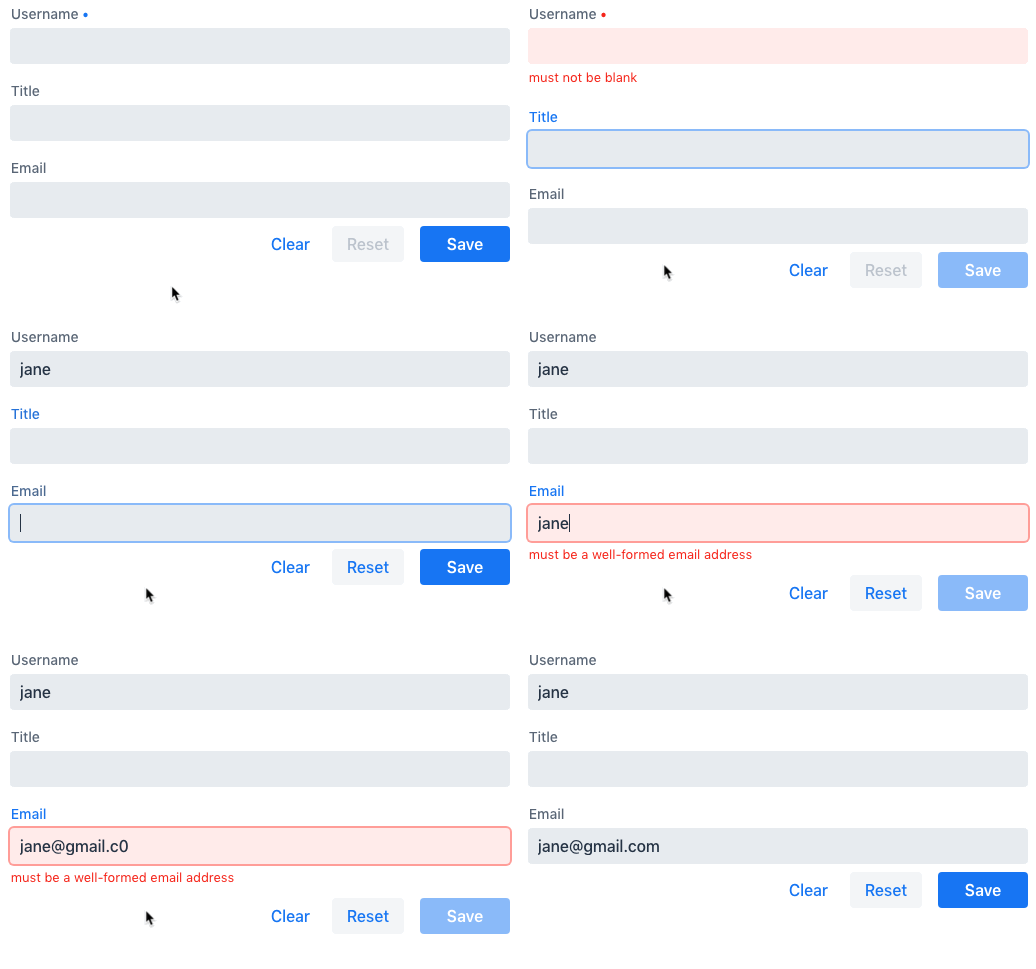
During the build, when Vaadin generates TypeScript types, it includes the constraint information into the generated model types. All forms working with the same entity type have the same set of constraints.
When you create a form for an entity type, it gets the user input validation automatically.
import { Binder, field } from '@vaadin/form';
import EmployeeModel from 'Frontend/generated/com/example/application/EmployeeModel';

...

private binder = new Binder(this, EmployeeModel);

render() {
  const { model } = this.binder;

  return html`
    <vaadin-text-field label="Username"
      ...="${field(model.username)}"></vaadin-text-field>
    <vaadin-text-field label="Title"
      ...="${field(model.title)}"></vaadin-text-field>
    <vaadin-email-field label="Email"
      ...="${field(model.email)}"></vaadin-email-field>
  `;
}
Defining Custom Constraints
The Bean Validation standard allows creating arbitrary https://beanvalidation.org/2.0-jsr380/spec/constraintsdefinitionimplementation-constraintdefinition-examples[custom constraints].
The Vaadin form [classname]#Binder API supports such custom constraints, as well.
The example below shows how to create and use a custom @StrongPassword constraint:
@Retention(RUNTIME)
@Target({ METHOD, FIELD, ANNOTATION_TYPE, CONSTRUCTOR, PARAMETER, TYPE_USE })
@Constraint(validatedBy = { StrongPasswordValidator.class })
public @interface StrongPassword {

    // min required password strength on the scale from 1 to 5
    int minStrength() default 4;

    String message() default "Please enter a strong password";
    Class<?>[] groups() default { };
    Class<? extends Payload>[] payload() default { };
}public class StrongPasswordValidator implements ConstraintValidator<StrongPassword, String> {
@Override
public boolean isValid(String object, ConstraintValidatorContext constraintContext) {
// Use the zxcvbn library to measure the password strength
Strength strength = zxcvbn.measure(object);
// fail the validation if the measured strength is insufficient
if (strength.getScore() < minStrength) {
constraintContext
.buildConstraintViolationWithTemplate(
strength.getFeedback().getWarning())
.addConstraintViolation();
return false;
}
return true;
}
}In this example, we use a third-party library to measure password strength to implement the custom validator. Add a dependency to your pom.xml:
<dependency>
    <groupId>com.nulab-inc</groupId>
    <artifactId>zxcvbn</artifactId>
    <version>1.3.0</version>
</dependency>public class Employee {
@StrongPassword
private String password;
}No additional steps are needed to start using the new validation rules in forms.
The field() directive applies all server-side constraints automatically.
private binder = new Binder(this, EmployeeModel);

render() {
  const { model } = this.binder;

  return html`
    <vaadin-password-field label="Password"
      ...="${field(model.password)}"></vaadin-password-field>

    <vaadin-button @click="${this.save}">Save</vaadin-button>
  `;
}
Notice, however, that in this example, validation happens only after the form is submitted. To validate the user input immediately, as users type, you would need to define a validator in TypeScript, as well. The following section shows how to do that.
Defining Custom Client-Side Validators
To give instant feedback to users as they type, you can define validators in TypeScript, so that they are executed in the browser, without a network round trip. The Vaadin form Binder API allows adding validators both for individual fields, and for the entire form value as a whole (for example to implement cross-field validation). Client-side validators are executed before the server side is invoked.
Warning | Validation ALWAYS needs to run on the server for your application to be secure. Additionally, you may validate input in the browser—immediately as users type—to give a better user experience. |
Adding Validators for a Single Field
When a validation rule concerns a single field, a client-side validator should be added with the addValidator() call on the binder node for that particular field.
This is the case with the custom @StrongPassword constraint example.
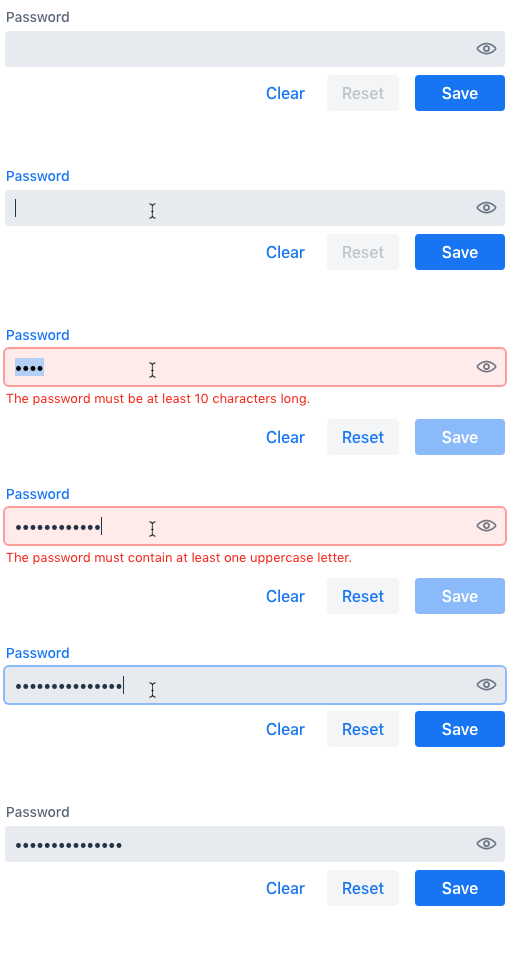
import * as owasp from 'owasp-password-strength-test';

// binder.for() returns a binder for the password field
const model = this.binder.model;
this.binder.for(model.password).addValidator({
  message: 'Please enter a strong password',
  validate: (password: string) => {
    const result = owasp.test(password);
    if (result.strong) {
      return true;
    }
    return { property: model.password, message: result.errors[0] };
  },
});
In this example, we use a third-party library to measure password strength to implement the custom validator. Add a dependency to your package.json:
npm install --save owasp-password-strength-test
npm install --save-dev @types/owasp-password-strength-test
Adding Cross-Field Validators
When a validation rule is based on several fields, a client-side validator should be added with the addValidator() call on the form binder directly. A typical example where this would be needed is checking that the password is repeated correctly:
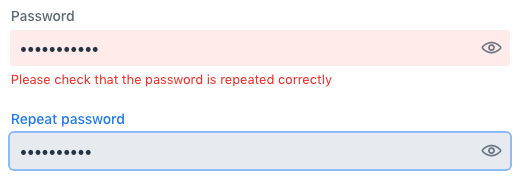
private binder = new Binder(this, EmployeeModel);

render() {
  return html`
    <vaadin-password-field label="Password"
      ...="${field(model.password)}"></vaadin-password-field>
    <vaadin-password-field label="Repeat password"
      ...="${field(model.repeatPassword)}"></vaadin-password-field>
  `;
}

protected firstUpdated(_changedProperties: any) {
  super.firstUpdated(args);

  const model = this.binder.model;
  this.binder.addValidator({
    message: 'Please check that the password is repeated correctly',
    validate: (value: Employee) => {
      if (value.password != value.repeatPassword) {
        return [{ property: model.password }];
      }
      return [];
    }
  });
}
When record-level validation fails, there are cases when you want to mark several fields as invalid.
To do this with the @vaadin/form validator APIs, you can return an array of { property, message } records from the validate() callback.
Returning an empty array would be equivalent to returning true, meaning that validation passes.
If you need to indicate a validation failure without marking any particular field as invalid, return false.
Marking Fields as Required
To mark a form field as 'required', you can add a @NotNull or a @NotEmpty constraint to the corresponding property in the Java type.
@Size with a min value greater than 0 makes a field required, as well.
Alternatively, you can set the impliesRequired property when adding a custom validator in TypeScript, as shown in the /fusion/forms/binder-validation section earlier.
The fields marked as required have their required property set by the field() directive, causing validation to fail if they are left empty.
Built-in Client-Side Validators
The @vaadin/form package provides the client-side validators for the following JSR-380 built-in constraints:
Email– The string has to be a well-formed email addressNull– Must benullNotNull– Must not benullNotEmpty– Must not benullor empty (must have alengthproperty, for example string or array)NotBlank– Must not benulland must contain at least one non-whitespace characterAssertTrue– Must betrueAssertFalse– Must befalseMin– Must be a number whose value is higher than or equal to the specified minimumAdditional options:
{ value: number | string }
Max– Must be a number whose value is lower than or equal to the specified maximumAdditional options:
{ value: number | string }
DecimalMin– Must be a number whose value is higher than or equal to the specified minimumAdditional options:
{ value: number | string, inclusive: boolean | undefined }
DecimalMax– Must be a number whose value is lower than or equal to the specified maximumAdditional options:
{ value: number | string, inclusive: boolean | undefined }
Negative– Must be a negative number (0 is considered as an invalid value)NegativeOrZero– Must be a negative number or 0Positive– Must be a positive number (0 is considered as an invalid value)PositiveOrZero– Must be a positive number or 0Size– Size must be within the specified boundaries (included; must have alengthproperty, for example string or array)Additional options:
{ min?: number, max?: number }
Digits– Must be a number within the accepted rangeAdditional options:
{ integer: number, fraction: number }
Past– A date string in the pastPastOrPresent– A date string in the past or presentFuture– A date string in the futureFutureOrPresent– A date string in the future or presentPattern– Must match the specified regular expressionAdditional options:
{ regexp: RegExp | string }
They are usually used automatically. However, you could also add them to selected fields manually with binder.for(myFieldModel).addValidator(validator). For example addValidator(new Size({max: 10, message: 'Must be 10 characters or less'})).
All the built-in validators take one constructor parameter, which is usually an optional options object with a message?: string property (which defaults to 'invalid'), but some validators have additional options or support other argument types instead of the options object.
For example, the Min validator requires a value: number | string option.
This may be given as part of the options object, or you can pass just the minimum value itself instead of the options object (if you do not want to set message and leave it as the default 'invalid').
import { Binder, field, NotEmpty, Min, Size, Email } from '@vaadin/form';

@customElement('my-demo-view')
export class MyDemoView extends LitElement {
  private binder = new Binder(this, PersonModel);

  protected firstUpdated(_changedProperties: any) {
    super.firstUpdated(args);

    const model = this.binder.model;

    this.binder.for(model.name).addValidator(
      new NotEmpty({
        message: 'Please enter a name'
      }));

    this.binder.for(model.username).addValidator(
      new Size({
        message: 'Please pick a username 3 to 15 symbols long',
        min: 3,
        max: 15
      }));

    this.binder.for(model.age).addValidator(
      new Min({
        message: 'Please enter an age of 18 or above',
        value: 18
      }));

    this.binder.for(model.email).addValidator(new Email());
  }

  render() {
    const model = this.binder.model;
    return html`
      <vaadin-text-field label="Name"
        ...="${field(model.name)}"></vaadin-text-field>
      <vaadin-text-field label="Username"
        ...="${field(model.username)}"></vaadin-text-field>
      <vaadin-integer-field label="Age"
        ...="${field(model.age)}"></vaadin-integer-field>
      <vaadin-email-field label="Email"
        ...="${field(model.email)}"></vaadin-email-field>
    `;
  }
}
Validation Message Interpolation
You can use the low-level interpolateMessageCallback() API to customize the validation messages on the client side before they are displayed to the user. This can be used for localization purposes.
Binder has an optional static property interpolateMessageCallback, which is shared by all binder instances. It can be set to a callback function that returns the validation message you want to display to the user. The interpolateMessageCallback function is called every time a validator returns a message as a result of a validation being run. It receives the original validation message string, the Validator instance as well as the related BinderNode as context that can be used to decide what message you want to return.
Callback Parameters
interpolateMessageCallback receives the following parameters and returns a string.
| Parameter | Type | Description |
|---|---|---|
|
| The original validation message returned by the Validator. This may be a default validation message from a built-in validator, custom validator or a custom message defined on a Java Bean Validation annotation of a specific field. |
|
| The Validator instance that returned the message. |
|
| The BinderNode instance for which the validation was run. You can get the related model, value or Binder instance from the binder node. |
Message Interpolation Example
This example shows how to use the lit-translate package together with interpolateMessageCallback to translate validation error messages.
Make sure to install the lit-translate npm package first.
// ... other imports
import { get, registerTranslateConfig, use } from 'lit-translate';

// Configure lit-translate
const translateConfig = registerTranslateConfig({
  loader: lang => fetch(`/i18n/${lang}.json`).then(res => res.json()),
});
use('fi');

Binder.interpolateMessageCallback = (message, validator, binderNode) => {
  // Try to find a translation for the specific type of validator
  let key = `validationError.${validator.constructor.name}`;

  // Special case for DecimalMin and DecimalMax validators to use different message based on "inclusive" property
  if (['validationError.DecimalMin', 'validationError.DecimalMax'].includes(key)) {
    key += (validator as any).inclusive ? '.inclusive' : '.exclusive';
  }

  if (translateConfig.lookup(key, translateConfig)) {
    return get(key, validator as any);
  }

  // Fall back to original message if no translations are found
  return message;
};

// ... Router configuration
Sample translations for all error messages of built-in validators.
{
  "validationError": {
    "AssertFalse": "täytyy olla epätosi",
    "AssertTrue": "täytyy olla tosi",
    "DecimalMax": {
      "inclusive": "täytyy olla pienempi tai yhtä suuri kuin {{ value }}",
      "exclusive": "täytyy olla pienempi kuin {{ value }}"
    },
    "DecimalMin": {
      "inclusive": "täytyy olla suurempi tai yhtä suuri kuin {{ value }}",
      "exclusive": "täytyy olla suurempi kuin {{ value }}"
    },
    "Digits": "numero ei täsmää rajoituksiin (<{{ integer }} numeroa>.<{{ fraction }} numeroa> odotettu)",
    "Email": "täytyy olla kelvollinen sähköpostiosoite",
    "Future": "täytyy olla tuleva päivämäärä",
    "Max": "täytyy olla pienempi tai yhtä suuri kuin {{ value }}",
    "Min": "täytyy olla suurempi tai yhtä suuri kuin {{ value }}",
    "Negative": "täytyy olla pienempi kuin 0",
    "NegativeOrZero": "täytyy olla pienempi tai yhtä suuri kuin 0",
    "NotBlank": "ei saa olla tyhjä",
    "NotEmpty": "ei saa olla tyhjä",
    "NotNull": "ei saa olla null",
    "Null": "täytyy olla null",
    "Past": "täytyy olla menneisyyden päivämäärä",
    "Pattern": "täytyy täsmätä seuraavaan säännölliseen lausekkeeseen (regexp): {{ regexp }}",
    "Positive": "täytyy olla suurempi kuin 0",
    "PositiveOrZero": "täytyy olla suurempi tai yhtä suuri kuin 0",
    "Size": "pituuden täytyy olla {{ min }} ja {{ max }} väliltä"
  }
}